
01
Bring your starting point
Describe a topic, paste your notes, upload a document or video, or add a public link.
 YOUR CONTENT. A CLEARER STORY.
Turn a topic, document, video or link into a PowerPoint draft. Review the outline and make the story yours.
THREE SIMPLE STEPS
You guide the content. AI helps put the deck together.
Describe a topic, paste your notes, upload a document or video, or add a public link.
Review the structure while changes are still simple. Refine titles, reorder slides and decide what belongs.
Pick a visual style, generate the presentation and download the PowerPoint for final edits.
CONTENT FIRST, DESIGN NEXT
Use the material you already have, then refine the outline before the AI PowerPoint generator builds your deck.
Give lesson notes or a report a new structure. Document inputs are read for content; the original page layout is not preserved.
An editable outline lets you correct the emphasis, trim repetition and organize the presentation around your audience.
Explore academic, business, editorial and expressive visual styles using actual template previews.

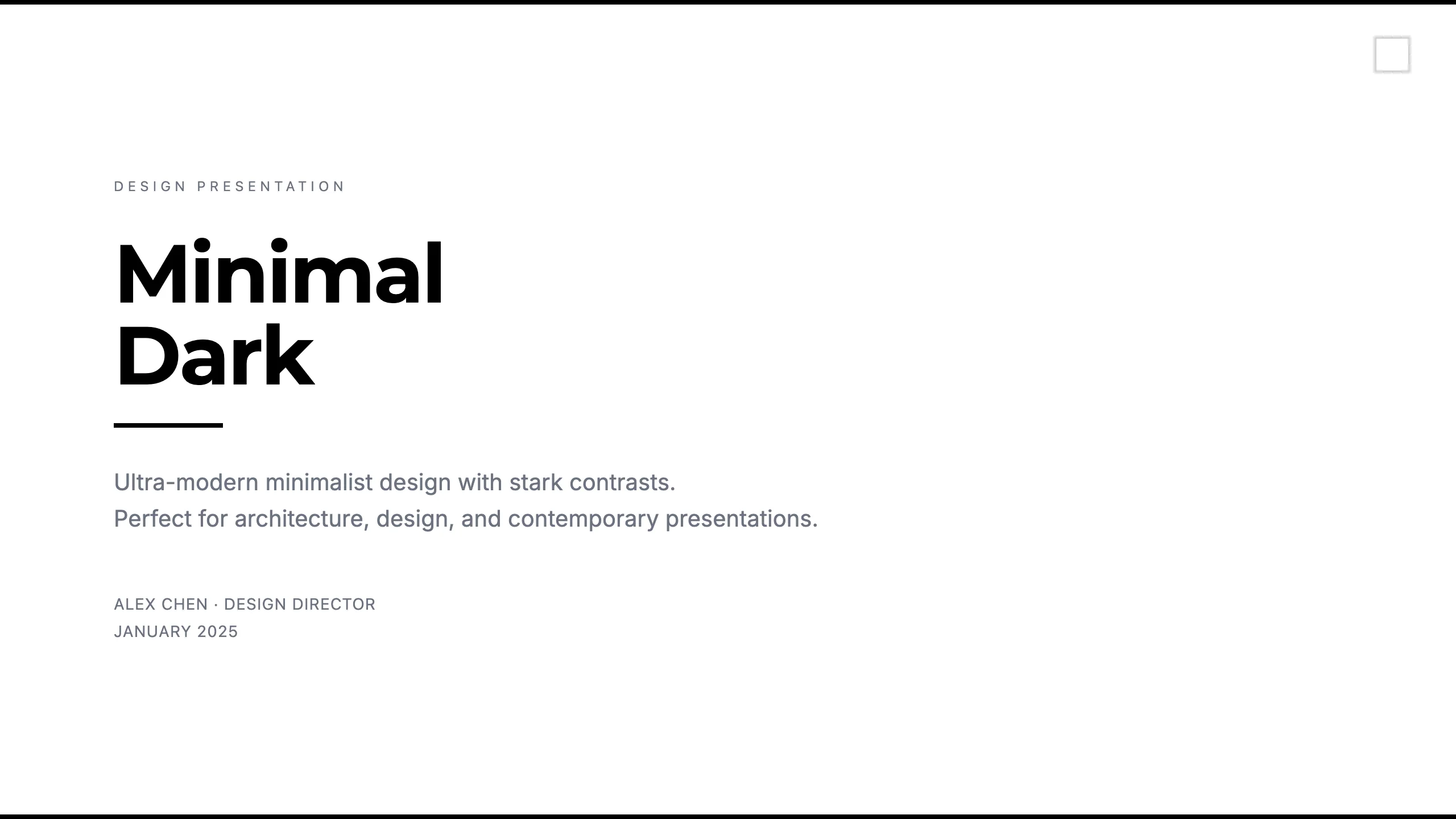
Style example · Your content is generated separately
Turn a topic and learning goals into a starting point for your next lesson.
Organize a process, explain a concept and prepare material for discussion.
Give your source material a clear structure for a talk or team update.
Start with text, a document, a video or a public link. Document formats include PDF, Word, Excel, PowerPoint, common images, HTML and EPUB, up to 50 MB. Videos can be MP4, MOV or WebM, up to 70 MB; their spoken content is used to plan the outline.
Yes. You can edit slide titles and key points, reorder slides, duplicate them and add or remove slides. Keep the final outline between 5 and 20 slides.
A PowerPoint presentation with a slide preview when available. Download the PPTX and review or edit it in compatible presentation software before presenting.
Upload a PDF to build a new presentation from its content. This is not a page-for-page file conversion: the tool extracts the material, proposes an outline and generates a new slide design. Review the outline before continuing.
Presentation generation follows your TeachAny plan. One successfully generated presentation counts as one use for accounts with a metered allowance. Sign in to see your available uses.
Yes. Choose the presentation language before creating the outline. Review terminology, facts and translations in the generated content before using it.
The output is a PPTX file. You can try importing it into Google Slides or another compatible editor; fonts and layouts may change during import. There is no direct Google Slides insertion in this tool.
Your next presentation can start with a few sentences.
Create my presentation