
Classroom Timer
Run a clear countdown for activities, transitions, independent work, and assessments.
Timer Settings
Quick Presets
Timer Color
Countdown
Ready
Keep Classroom Activities on Time
Display a simple countdown students can read from across the room.
A Large Countdown for the Whole Room
Easy to Read
Use fullscreen mode and a high-contrast timer display so students can check the remaining time quickly.
Open the Timer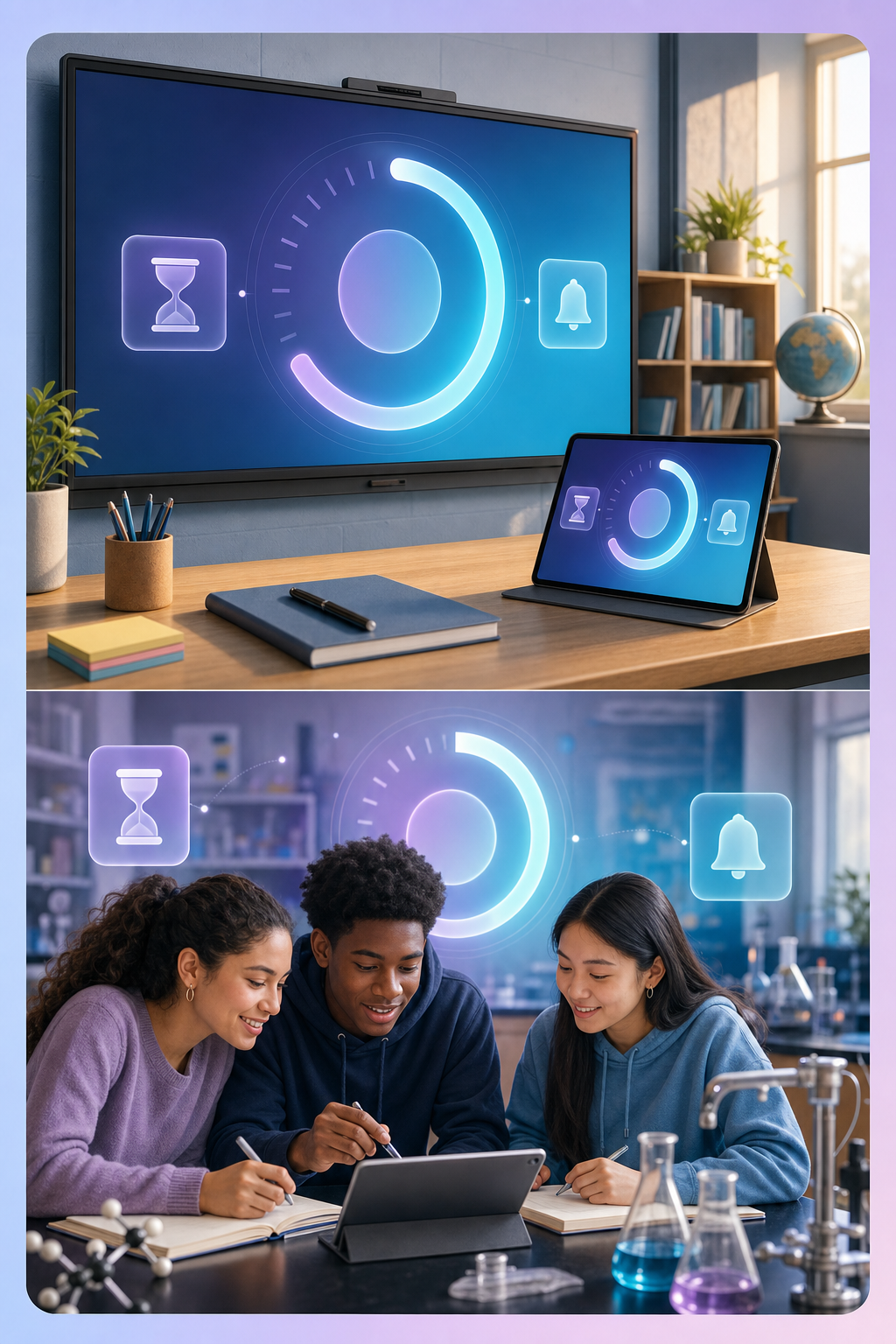
Pause, Resume, Reset, and Use Presets
Flexible Controls
Select a common classroom duration or enter an exact time, then control the countdown as the activity changes.
Set a DurationHow to Use the Classroom Timer
Set the time, start the countdown, and display it clearly.
Choose a Duration
Step 1
Select a quick preset or enter the exact number of minutes and seconds.
Add an Activity Label
Step 2
Optionally name the activity and choose a color students can recognize.
Start the Countdown
Step 3
Use the normal view or switch to fullscreen and pause or reset when needed.
A Clear Visual Timer for Teaching
Support routines and time awareness without extra setup
Makes Time Visible
Students can see how long they have without asking repeatedly.
- Large countdown display
- Clear activity label
- High-contrast color choices
Supports Classroom Routines
Reuse familiar durations for common parts of the lesson.
- One-click presets
- Pause and resume controls
- Fast reset between activities
Works Anywhere with a Browser
No special classroom hardware or account is required.
- Fullscreen projection
- Optional completion sound
- Runs locally in the browser
Useful Throughout the School Day
Use one timer for transitions, group work, quizzes, and breaks.

Grace Wilson
Elementary Teacher
The large display helps transitions finish faster because everyone can see the same countdown.

Marcus Hill
Science Teacher
I use the presets for lab stations and pause the timer whenever I need to clarify instructions.

Jade Nguyen
School Librarian
Fullscreen mode is clean and readable even from the back of the room.
Classroom Timer FAQs
Questions about presets, fullscreen mode, sound, and browser use
Yes. Click Fullscreen to enlarge the countdown for a projector or classroom display.
Yes. Pause the current timer and resume it without losing the remaining time.
You can enable or disable a short browser-generated sound when the countdown reaches zero.
Yes. The countdown is based on the target end time, so it stays accurate when you return to the tab.
No. The countdown runs entirely in your browser and is free to use.